
Chrome Remote Desktop’ı İndir – Windows, Mac, Android ve iOS için Ücretsiz Güvenli Uzaktan Erişim Aracı
Overview
Chrome Remote Desktop, Chrome tarayıcısı veya özel mobil uygulamaları kullanarak istediğiniz yerden bir bilgisayarı kontrol etmenizi sağlayan hafif, çok platformlu bir uzaktan erişim çözümüdür. Hem kişisel kullanım hem de hafif teknik destek için tasarlanan hizmet, kontrol etmek istediğiniz makineye küçük bir host bileşeni ve bağlandığınız cihazda tarayıcı tabanlı bir istemci kurarak çalışır. Kurulum tamamlandığında, bir PIN veya tek kullanımlık kod ile uzaktan oturum başlatabilir, böylece geçici erişimi bir arkadaşınıza, aile üyesine veya destek teknisyenine kolayca devredebilirsiniz.
The core philosophy behind Chrome Remote Desktop is simplicity. There are no complex licensing tiers, no recurring subscription fees, and no hidden charges—everything is provided for free by Google. The application runs on Windows 10/11, macOS 10.13+, Linux (via Chrome), as well as Android 5.0+ and iOS 11+. Because it is built into the Chrome ecosystem, updates are delivered automatically through the Chrome Web Store, ensuring you always have the latest security patches and performance improvements.
Chrome Remote Desktop, LogMeIn veya TeamViewer gibi premium araçlarda bulunan dosya transferi, çoklu monitör geçişi veya uzaktan yazdırma gibi birçok gelişmiş özelliğe sahip olmasa da, dosyalara erişim, yazılım sorunlarını giderme veya hızlı yardım sağlama gibi günlük görevler için güvenilir ve güvenli bir bağlantı sunmada üstün performans gösterir. Hizmet, Google'ın sağlam kimlik doğrulama sisteminden de faydalanır; bu sayede Google hesabınız için zaten kullandığınız iki faktörlü doğrulamayı da kullanabilirsiniz.
Key Features
- Cross‑Platform Support: Works on Windows, macOS, Linux, Android, and iOS through the Chrome browser or dedicated mobile apps.
- Free and Secure: No subscription fees; connections are encrypted with TLS and authenticated via your Google account.
- Easy Setup: Guided installation via the Chrome Web Store, with automatic configuration of the host component.
- One‑Time Access Codes: Generate temporary codes for guest users, ideal for ad‑hoc tech support.
- Persistent PIN Access: Set a permanent PIN for recurring remote sessions to your own machines.
- Low Bandwidth Consumption: Optimized for slower connections, ensuring smooth screen rendering even on 3G/4G networks.
- Automatic Updates: Host and client software are kept current through Chrome’s update mechanism.
- System Preference Integration (macOS): After installation, a panel appears in System Preferences for quick access to settings.
Although the feature set is intentionally minimal, each function is built with reliability in mind. The toolbar that appears during a session includes essential controls such as screen scaling, a full‑screen toggle, and two basic keyboard shortcuts for copy‑paste and refresh. While you won’t find advanced session recording or remote printing, the simplicity reduces the attack surface, making Chrome Remote Desktop a surprisingly secure choice for occasional remote work.
Installation, Usage & Compatibility
Step‑by‑Step Installation
- Chrome Web Mağazası'nı açın ve “Chrome Remote Desktop”ı arayın. Add to Chrome (Chrome'a Ekle) düğmesine tıklayın ve kurulumu onaylayın.
- Eklenti eklendikten sonra, Chrome Uygulamalar menüsünden uygulamayı başlatın veya remotedesktop.google.com adresini ziyaret edin.
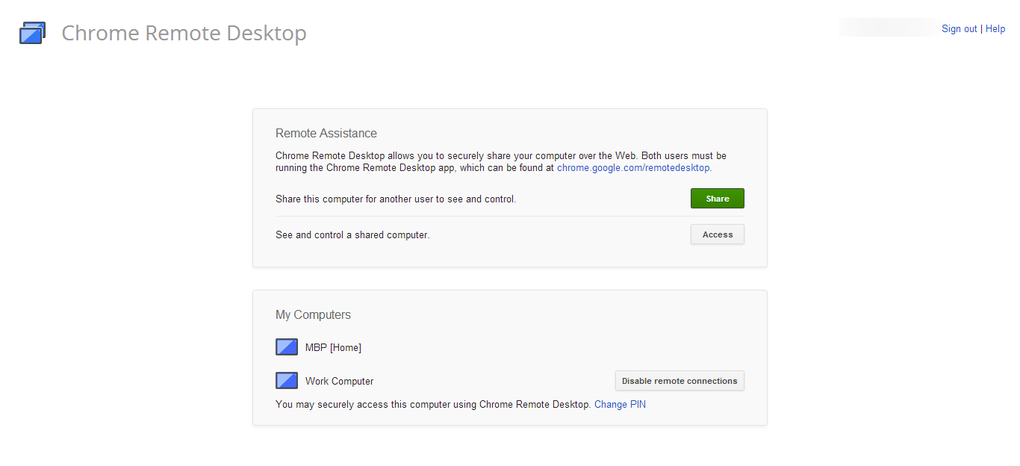
- Google hesabınızla oturum açın. Hizmet, host bilgisayarda uzaktan bağlantıları etkinleştirmenizi isteyecektir.
- Küçük host yükleyicisini (Windows, macOS ve Linux için mevcut) indirin ve çalıştırın. Gerekli izinleri vermek için ekrandaki sihirbazı izleyin.
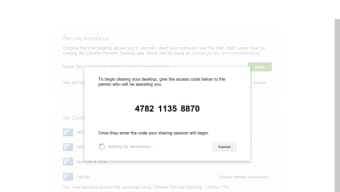
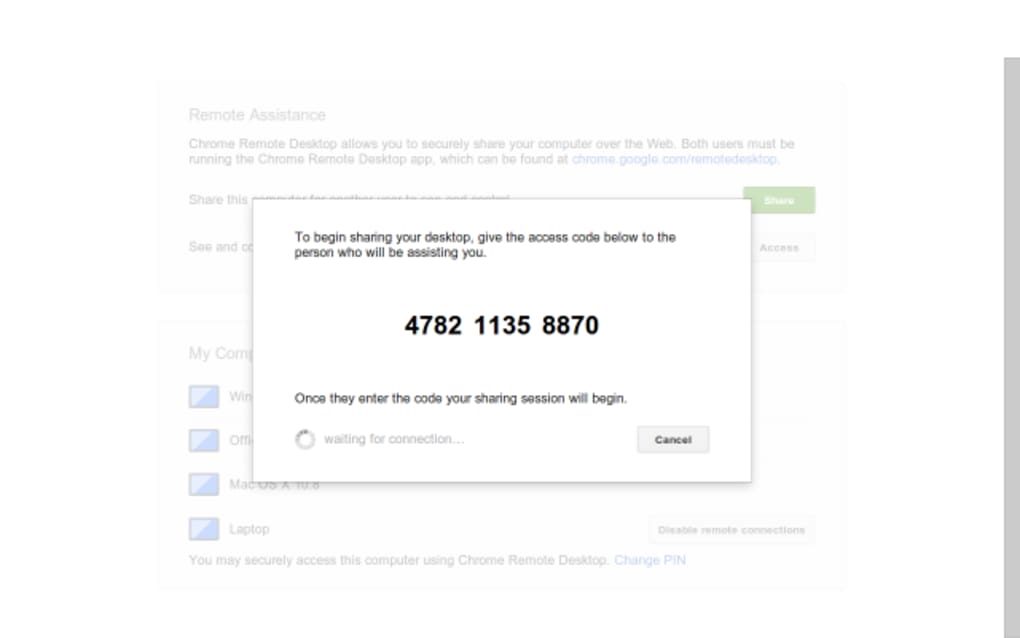
- Kalıcı erişim için kişisel bir PIN (minimum 6 rakam) ayarlayın veya erişim paylaşmanız gerektiğinde tek kullanımlık kod oluşturmayı seçin.
- İstemci tarafında (başka bir bilgisayar veya mobil cihaz), Play Store veya App Store'dan Chrome Remote Desktop uygulamasını kurun, aynı Google hesabıyla oturum açın ve kullanılabilir makinelerin bir listesini göreceksiniz.
- Hedef makineyi seçin, PIN veya tek kullanımlık kodu girin ve bağlanmış olacaksınız.
Operating System Support
Chrome Remote Desktop aşağıdaki platformlarda çalışır:
- Windows 10, Windows 11 (64‑bit)
- macOS 10.13 High Sierra and later (Intel & Apple Silicon)
- Linux distributions that support Chrome (Debian, Ubuntu, Fedora, etc.)
- Android 5.0 Lollipop and later
- iOS 11 and later
The host component must be installed on a desktop OS (Windows, macOS, or Linux). Mobile devices act only as clients, meaning you can control a PC from a phone, but you cannot host a remote session from a phone.
Using the Tool Effectively
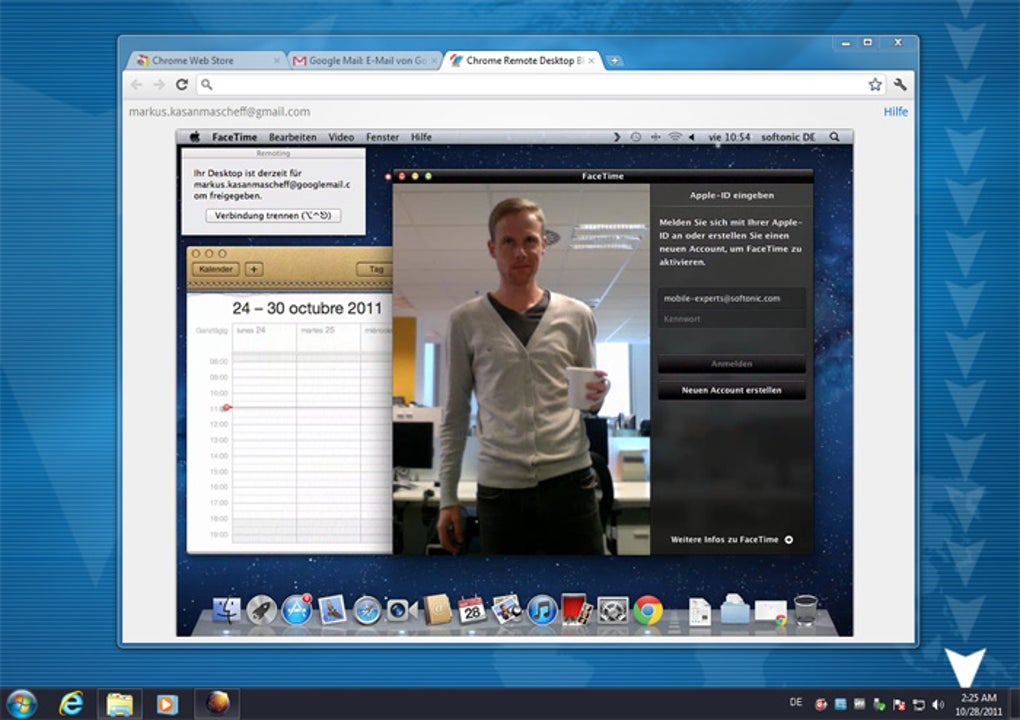
Once connected, the remote session opens in a browser window (or native app on mobile). The top toolbar lets you adjust the display scaling, switch to full‑screen mode, and send a few keyboard shortcuts to the host. For security, the host computer can see a visual indicator that a remote session is active, and you can end the session at any time by closing the window or clicking “Stop sharing”. If you need to hand over control temporarily, simply generate a new one‑time code from the web interface; the code expires after a few minutes, reducing the risk of unwanted access.
Pros, Cons & Frequently Asked Questions
Pros
- Completely free with no hidden fees.
- Strong security backed by Google’s authentication and TLS encryption.
- Easy, guided setup that works for non‑technical users.
- Works on virtually every major operating system.
- Low bandwidth usage makes it viable on slower connections.
Cons
- Lacks advanced features such as file transfer, remote printing, and multi‑monitor selection.
- No built‑in session recording or screenshot tools.
- The toolbar is minimal, offering only basic screen adjustments and two keyboard shortcuts.
- One‑time access codes must be manually generated for each support session, which can feel cumbersome.
- Host must be a desktop OS; mobile devices cannot act as hosts.
FAQ
Chrome Remote Desktop kişisel kullanım için güvenli mi?
Evet. Bağlantılar TLS ile şifrelenir ve erişim Google hesabı kimlik bilgileriniz ve bir PIN veya tek kullanımlık kod ile kontrol edilir. Google ayrıca ek koruma için iki faktörlü kimlik doğrulama sağlar.
Yerel ve uzaktaki bilgisayar arasında dosya transferi yapabilir miyim?
Dosya transferi Chrome Remote Desktop'ın yerel bir özelliği değildir. Bunun yerine bulut depolama (Google Drive, Dropbox) veya ayrı bir dosya transfer aracı gibi alternatif bir yöntem kullanmanız gerekir.
Sorunsuz bir deneyim için ne kadar bant genişliği gerekir?
Chrome Remote Desktop düşük bant genişliği için optimize edilmiştir ve 1 Mbps gibi yavaş bağlantılarda bile çalışabilir. Yüksek çözünürlüklü ekranlar veya hızlı video oynatma için daha hızlı bir bağlantı (5 Mbps veya üzeri) daha sorunsuz bir deneyim sağlar.
Chrome Remote Desktop'ı bir Linux makinesinde kullanabilir miyim?
Evet. Linux kullanıcıları, uzantıyı destekleyen bir Chrome sürümü çalıştırdıkları sürece host bileşenini Chrome Web Mağazası üzerinden kurabilir. İstemci, Chrome veya mobil uygulamaları çalıştırabilen herhangi bir platformda çalışır.
Uzaktan oturumu güvenli bir şekilde nasıl sonlandırırım?
Sadece uzaktan pencereyi kapatın veya Chrome Remote Desktop arayüzünde “Stop sharing” (Paylaşımı Durdur) düğmesine tıklayın. Host bilgisayar bağlantıyı hemen sonlandırır ve oturumun sona erdiğine dair bir bildirim gösterir.
Conclusion & Call to Action
Chrome Remote Desktop, bilgisayarlarınıza her yerden erişmek için basit, güvenli ve tamamen ücretsiz bir yol sunar. Özellik derinliği açısından premium çözümlerle rekabet etmese de, kullanım kolaylığı, çok platformlu erişimi ve Google kimlik doğrulamasıyla entegrasyonu, bireyler, aileler ve küçük ölçekli teknik destek senaryoları için mükemmel bir seçenek haline getirir. Lisans veya karmaşık yapılandırma derdi olmadan güvenilir bir uzaktan erişim aracına ihtiyacınız varsa, bugün Chrome Remote Desktop'ı deneyin.
Uzaktan bağlantınızı kurmaya hazır mısınız? Chrome Remote Desktop'ı hemen indirin ve dakikalar içinde makinelerinizi kontrol etmeye başlayın.
Artılar: Ücretsiz, güvenli, kolay kurulum, çok platformlu.
Eksiler: Dosya transferi yok, sınırlı araç çubuğu, çoklu monitör geçişi yok.







